
Reset password instructions
Steps you need to follow to create a new password and login to your Learn Through Active Play account.
- Choose the login option in the main navigation.
 On a desktop computer look for this login icon in the top right hand corner.On a mobile phone, click the mobile menu icon (three horizontal lines in the top right corner of your screen) and look for the login icon inside the the menu that opens.
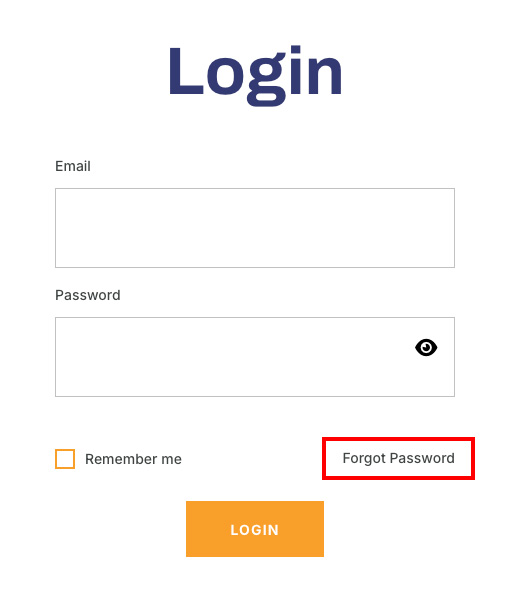
- Choose the Forgot Password link in the bottom right hand corner.
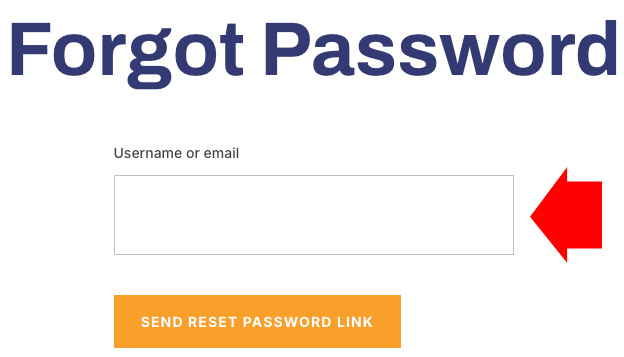
- Enter the email address you used to create your account on the Forgot Password page that opens.
- This will send an email to that email address that you will need to open. The email will have a link to click to create your new password.
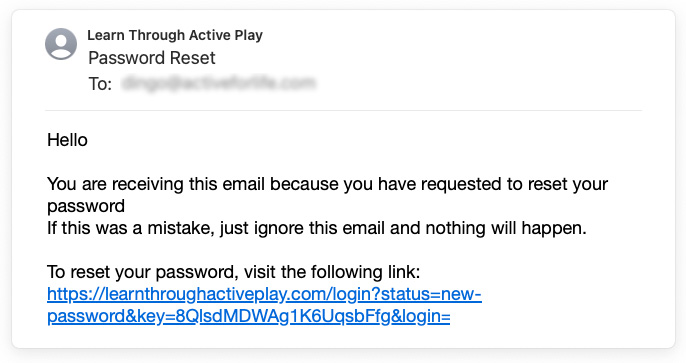
- Click on the link in the email and you will be prompted to choose a new password on the New Password page.
Choose a password that is easy to remember and also write it down or save it somewhere for future reference.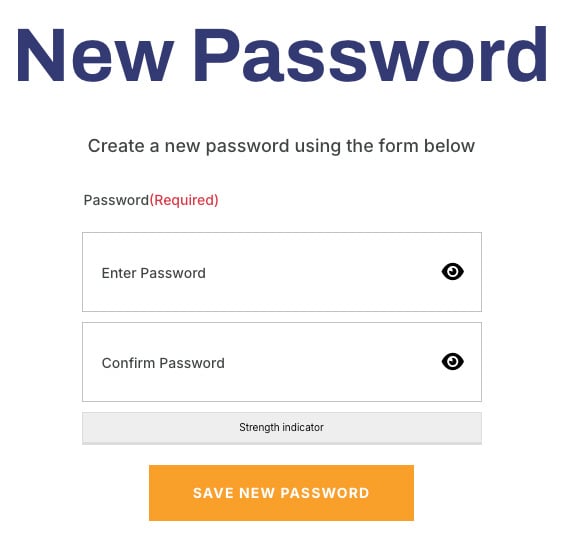 IMPORTANT If clicking the link in the email doesn’t take you to the New Password page, select the entire link by highlighting it in the email and then copy and paste it into your browser address bar. Press the enter/return key.
- You will now be prompted to log into your account using the password you just created.
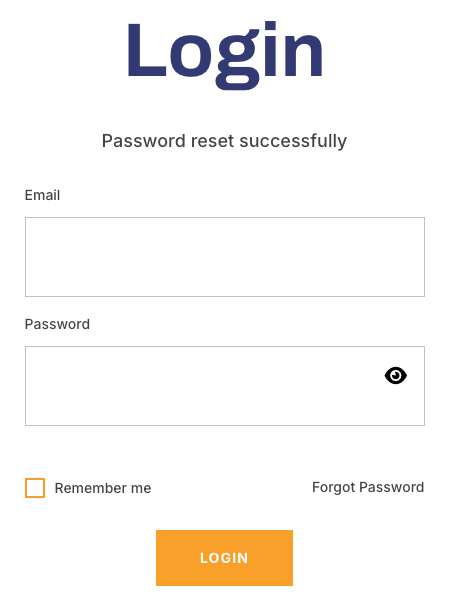
- Choose the Forgot Password link in the bottom right hand corner.